Connect Bluesky
- In SlipRelay, go to Accounts → Bluesky and type your handle in the box (e.g.
you.bsky.social). - Click Connect with Bluesky.
- Bluesky's own sign-in page opens. Sign in if asked, then approve SlipRelay.
- You're back on Accounts with Bluesky connected.
SlipRelay never sees your Bluesky password. To disconnect: click Disconnect in Accounts.
## Using an app password instead
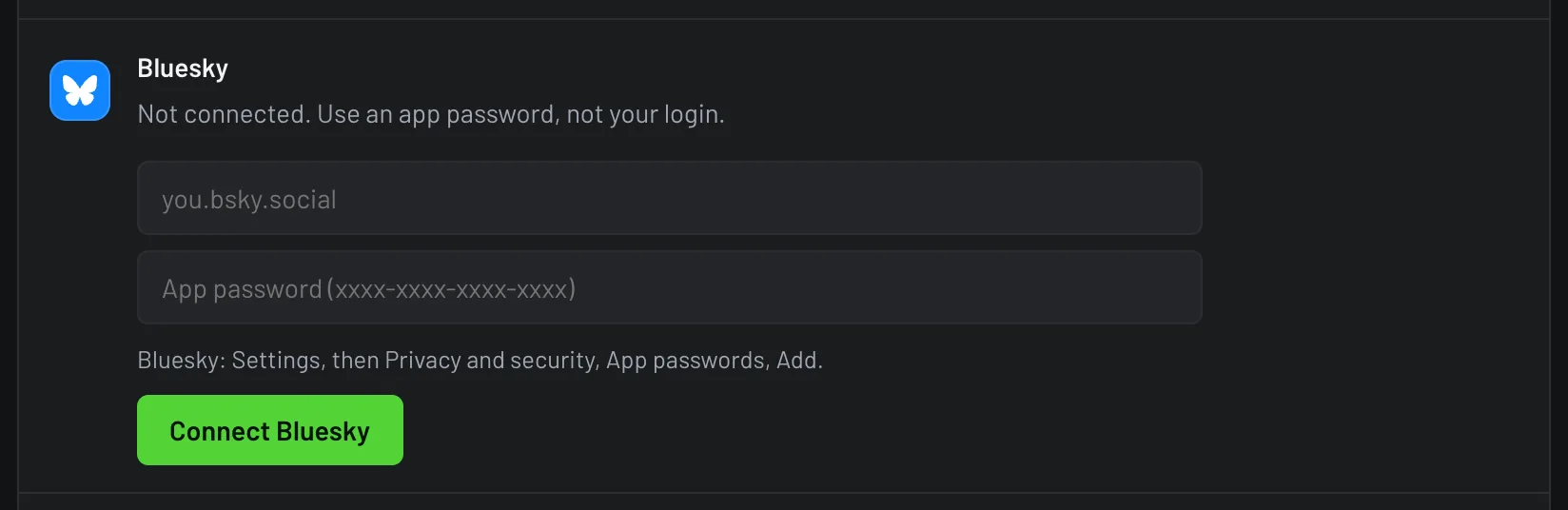
If the sign-in doesn't work for you, click Use an app password instead:
- In Bluesky, go to Settings → Privacy and security → App passwords → Add App Password. Name it "SlipRelay" and copy the code, which looks like
xxxx-xxxx-xxxx-xxxx. - Enter your handle and paste the app password, then click Connect Bluesky.
An app password isn't your real password, and you can delete it in Bluesky anytime. SlipRelay can't post after that.
Problems
- "Enter your Bluesky handle.": type the full handle, including
.bsky.socialor your custom domain. - "Couldn't connect Bluesky. Check the handle and try again, or use an app password.": check the spelling of your handle, or use the app password route above.
- "Bluesky sign-in was cancelled.": click Connect with Bluesky again and approve on Bluesky's page.
- A red "Last post failed" panel on the Bluesky card: follow the fix it shows. Usually that's Reconnect Bluesky.